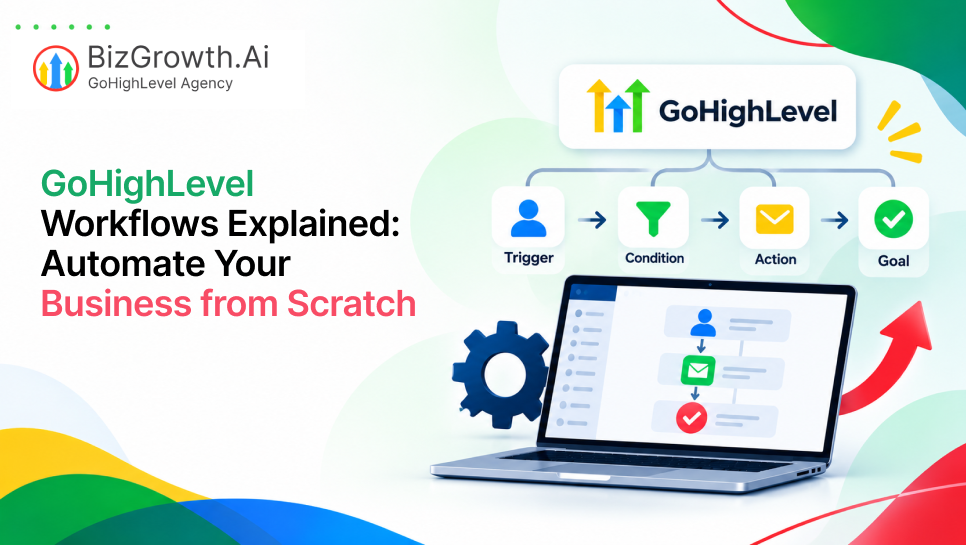
What Are GoHighLevel Workflows?
Running a business or managing client accounts means constant communication and task tracking. Say a lead fills out a form, asks for an appointment, or sends a question online. That person is often choosing who to call right then. A slow reply can send them to a competitor. Following up by hand eats hours of your day. It also invites mistakes.
Here is how to build a gohighlevel workflow from scratch. You’ll go through the basic concepts and setup steps. You’ll also see few practical campaign examples and learn the habits that keep your system tidy. These tools can change how you handle daily work. That’s true whether you run one business or offer white-label workflow automation for agencies.
Once you set up a gohighlevel workflow, it runs on its own. It waits for something to happen, like a lead filling out a form, a missed call, or a deal changing stages. Then it takes over. You only write the rules once. After that, the platform handles emails, tasks, and pipeline updates.
Workflows replaced the old campaigns and triggers, and now it’s all in one visual builder. You can see exactly where a contact is, from the moment they sign up to the day they buy.
That speed matters. Gohighlevel workflow automation lets you reply to a new lead in seconds, and a quick reply often keeps them interested. It can also tag contacts, update records, and alert your team, so nobody has to do those jobs by hand.
Key Components of a GoHighLevel Workflow
Before you build an automation, get to know the parts it’s made of. A few basic building blocks sit behind every workflow. They control where each contact goes and what happens to them along the way.
Triggers
Triggers are what starts a workflow. A trigger is what happens like a contact filling out a form, booking an appointment, or opening an email. It can be inside your system or outside it. A workflow can have one or multiple triggers. When one of them fires, the contact goes directly into the workflow.
Actions
Actions are the jobs a workflow does once a trigger starts it. It can send a text or an email, assign a contact to a team member. It can add a tag, or update a deal’s status in your CRM pipeline. You can link several actions together. That gives you a process with many steps.
Wait Steps
Not every action should happen right away. A wait step adds a pause between two actions. Set it for a few minutes, hours, or days. Or tell it to hold until something happens, like a reply to your text or a certain time of day. Until then, the contact stays put.
If/Else Conditions
If/Else conditions send contacts down different paths. The workflow checks the rules. Does the contact have a certain tag? Did they answer a question or click a link? If so, they take the “yes” path. If they do not match, they follow the alternative branch.
Goals and Workflow Exit Conditions
Goals and exit conditions stop a contact from getting more messages once they’ve done what you wanted. Say a campaign aims to get a lead to book a call. You can have the workflow remove the contact as soon as an appointment is scheduled. That way, someone who has already booked won’t get promotional follow-ups.
How to Create a GoHighLevel Workflow from Scratch
Building your first workflow is easy when you take it one step at a time. Here is how to build GHL workflows from start to finish.
Define the Automation Goal
Before opening the workflow builder, identify the exact result you want to achieve. Start by asking two questions. What should kick off the workflow? And what counts as success? A clear goal keeps you from piling on extra steps or sending messages that only confuse your contacts.
Choose the Right Trigger
Open the workflow builder from the automation section of your account. Start by picking the trigger that fits your goal. It’s the event that sets everything off, like a form submission or a new tag. Then add a filter. It keeps out any contact who doesn’t belong in the workflow.
Add Actions
Click the plus icon under your trigger to add the first action. You can pick a message action, such as a text or an email. Or pick a task-type action, like adding a tag or creating a deal in your pipeline. Then write your message or choose a template from your library.
Set Delays and Conditions
Add wait steps between your actions, so contacts have time to read and respond to your messages. If/Else branches are used when you want your workflow to do different things depending on what a contact does. Then everyone gets messages that are in proportion to what they have done.
Create an Exit Point
Set clear exit rules in your workflow settings. You are able to configure a setting to pause the workflow when a contact replies or add a goal step to remove contacts when they do what you want them to do. Good exit points make your automation nice and polite, and professional.
Test and Publish the Workflow
Test your sequence thoroughly before going live. Try the built-in testing tool or enter a test lead using your own contact details. Check that all SMS, email, tag and pipeline update functionality works as expected. Once you confirm that the sequence is working, change the status from draft to publish.
GoHighLevel Workflow Examples for Common Business Processes
If you think about the actual business use cases, it is much easier to create GHL automation workflows. Below are five common automations that immediately add value to both companies and agencies.
New Lead Follow-Up Workflow
This sequence ensures that every new prospect receives immediate attention.
- Form Submission Triggers Automation: A prospect fills out the contact form on your landing page. The workflow starts right away.
- Instant SMS Reply: The system sends a text to the prospect in 30 seconds. The message is a thank you and a conversation starter.
- Email Follow-Up: A short time later, an email arrives with more details about your products or services.
- Sales Team Alert: Your sales team is notified by email or in the mobile app. They can then review the details of the new lead.
- Additional Follow Ups if lead doesn't respond: If the prospect does not answer, the system sends a few follow-up messages over the next few days. The goal is to get a reaction.
Appointment Reminder Workflow
Missing appointments costs businesses money. This automation minimizes no-shows.
- Appointment Booking Triggers the Workflow: A client picks a date and time on your calendar. That starts the workflow.
- Confirmation Message: Right after booking, the system sends a text and an email. Both include the appointment details and a link to the location.
- Reminder 24 Hours Before: A scheduled message goes out one day prior to remind the client of their upcoming appointment.
- Reminder Shortly Before the Appointment: A final reminder text goes out one or two hours before the scheduled time to ensure attendance.
- Follow-Up After the Appointment: Once the appointment time passes, the system updates the status and sends a follow up message to check on next steps.
Missed Call Workflow
Unanswered phone calls often mean lost revenue. This workflow turns missed calls into active text conversations.
- Missed Call Triggers an Automated Response: A call comes in and your team can’t answer it. That starts the workflow.
- Send an SMS Asking the Caller to Respond or Book: The platform sends the caller a text. It says your team is busy right now and asks how you can help.
- Notify the Sales Team: Your staff gets an alert. That way, someone can call the customer back as soon as they can.
- Continue Follow-Up If There Is No Response: If the caller doesn’t reply to the first text, a second reminder goes out later that day.
Lead Nurturing Workflow
Not all prospects buy immediately. A nurturing sequence keeps your brand top of mind over time.
- Segment Leads Based on Behavior: Contacts join the workflow when they get a certain interest tag or ask for a downloadable resource.
- Send Educational Content: Over several weeks, the workflow sends helpful articles, case studies, or video links.
- Use Wait Periods Between Messages: You add wait steps of three to seven days between messages. That keeps your contacts’ inboxes from filling up.
- Move Engaged Leads Toward a Sales Conversation: A contact clicks a link or interacts with your content. The system then alerts your sales reps, so they can reach out directly.
Review Request Workflow
Positive customer reviews improve local search rankings and build credibility.
- Trigger After a Completed Service or Appointment: You mark a customer’s job as complete. That starts the review request workflow.
- Send Review Request: The customer gets an automatic text or email asking them to share how it went.
- Follow Up with Customers Who Didn’t Respond: After 3 days if the customer has not clicked the link, they send a friendly follow-up message.
- Internally Route Negative Feedback If Appropriate: When the customer selects a low rating, an If/Else step directs them to a private feedback form instead of a public review site.
GoHighLevel Workflow Best Practices
Operational automation requires strategic planning. Following these guidelines will help maintain high deliverability rates and happy customers.
Keep Each Workflow Focused on One Goal
No workflow solves all problems. Break the work up instead. Break each job into smaller workflows. Examples include lead capture, appointment booking, or onboarding. smaller ones are easier to repair and change later on.
Use Specific Triggers
Understand your triggers. You can choose the form and landing page to trigger the workflow instead of running it each time a form is submitted. This eliminates the risk of putting contacts in the wrong message order by mistake.
Avoid Excessive Messages
Respect your lead inbox. If you send too many texts and emails in one day, you can end up with high unsubscribe rates and spam complaints. Let me share with you, my experience.
Add Proper Wait Times
Arrange your messages logically. Crunch the numbers on your customer's business hours and time zones. Creating window conditions for your wait steps helps you prevent sending out automated text messages late at night or early in the morning.
Stop Workflows When the Lead Converts
Set your workflow to stop sending messages once a lead replies or books an appointment. Pitching someone who has already bought can hurt your brand’s reputation.
Test Every Workflow Before Activation
Test your sequences on different devices and mail providers. Your message templates must contain the correct custom values (e.g. First Name, Appointment Time).
Common Workflow Mistakes to Avoid
Marketers, even experienced ones, make mistakes when setting up automation systems. Knowing these common pitfalls will save you time and frustration.
Overcomplicated Workflows
Troubleshooting can be a chore with large sequences that have dozens of branching paths. If a step breaks, it’s a lot of work to find the error inside a complex Web of conditions. Rather, break down large processes into connected sub-workflows.
Duplicate Automations
Publishing new workflows while keeping old campaigns active can lead to your contacts getting duplicate or competing messages. Always archive or disable legacy triggers and campaigns before enabling new sequences.
Incorrect Triggers
If you use a general trigger without any filters, you could accidentally enrolll your entire contact database into an active workflow. Always make sure to double-check your trigger settings and filters before publishing.
Missing Exit Conditions
Miss a setting like “remove on reply,” and prospects keep getting sales pitches even after they ask a question. Check the workflow settings tab to confirm how contacts exit.
Not Testing Different Customer Paths
If you only test the positive side of an If/Else condition, you leave the door open for mistakes in the alternative side. Test all decision paths, so all contacts have a smooth journey.
Forgetting to Update Workflows
Processes, phone numbers, and staff names change. Go through your active workflows now and then, and fix old content, dead links, or outdated team assignments.
How to Optimize Workflows Over Time
Creating a workflow is not a one-time event. Your automations keep running as your business grows with regular check-ins and tweaks.
Monitor Lead Responses and Conversions
Open up your workflow analytics and look at 3 things. "How many contacts are in the workflow? How many completed each step? How many converted in the end? The answers show which messages get people to act and which don’t.
Identify Workflow Drop-Off Points
Look for places where contacts stop opening emails or stop getting texts. If you see a high drop off at a certain action then you need to change the content or the timing.
Improve Messaging and Timing
Try different subject lines, text wording and wait times. Small changes to the clarity of your writing can help improve your response rates over time.
Remove Unnecessary Steps
If contacts habitually convert early in your sequence, you might want to eliminate some follow up steps. You can keep your automation simple, and avoid too many messages. It will be easier to maintain.
Adjust Automation as the Business Process Changes
Your business changes, so your workflows should too. When your sales process shifts or you add a service, update them to match. Customers then get a consistent experience.
The Conclusion
Automated workflows free up your time and help you answer leads faster. They can also help you keep more of your customers. Once you know how triggers, actions, and conditions work, you can build automations that run smoothly. Setting up complex automations isn’t always quick, and it often takes some technical skill. If you’d like a hand, HireHighLevel Agency can help.
Frequently Asked Questions
What is a workflow in GoHighLevel?
In GoHighLevel, a workflow is a series of automated steps. It’s triggered and then does things like sending messages, moving contacts through pipeline stages and adding tags based on what the contact does.
How do I create a workflow in GoHighLevel?
To create a workflow, go to the automation section of your dashboard and click “create new workflow.” Choose a starting trigger, add your actions and wait steps, and test the workflow. When it works, publish it.
What triggers can GoHighLevel workflows use?
GoHighLevel workflows can be triggered by many things. This could be a form submission, survey, booked appointment, inbound message, call status, tag change or pipeline stage move.
Can GoHighLevel workflows send automated SMS and emails?
Yes, GoHighLevel workflows can automatically send SMS and email messages to contacts directly according to the schedule settings and conditional logic that you put into your sequence.
How do I stop a GoHighLevel workflow?
You can stop a workflow for a contact by turning on the stop on reply feature in the workflow settings, using a goal action step, or manually removing the contact from the list of workflow execution.